

How to Effectively Add Mobile Proxies: A Comprehensive Guide
In the digital age, privacy and security are paramount. Whether you are browsing, streaming, or conducting business online, mobile proxies can be a useful tool. This guide will walk you through the steps of adding mobile proxies to your systems, allowing you to enhance your privacy, evade restrictions, and utilize the benefits of mobile networking.
Understanding Mobile Proxies
Mobile proxies are IP addresses assigned to mobile devices, rather than standard broadband connections. Unlike traditional proxies that use data center IPs, mobile proxies are less likely to be flagged by websites, providing a more seamless user experience. They are ideal for web scraping, social media management, and accessing geo-restricted content.
Benefits of Using Mobile Proxies
- Enhanced Privacy: Mobile proxies mask your real IP address, keeping your online activities private.
- Access to Geo-restricted Content: They allow you to bypass geographical restrictions and access region-locked websites.
- Less Detection: Websites are less likely to block mobile IP addresses compared to data center IPs.
- Better Performance: Mobile proxies can provide faster response times, as they often have lower bandwidth limitations.
Choosing the Right Mobile Proxy Provider
Before adding mobile proxies, it is crucial to select a reliable provider that meets your needs. Here are some aspects to consider:
- Reputation: Look for providers with positive reviews and a strong reputation in the market.
- IP Pool Size: A larger pool means less chance of getting blocked.
- Speed: Ensure the provider offers fast connections for your specific use case.
- Support: Reliable customer support is essential for resolving issues efficiently.
How to Add Mobile Proxies: A Step-by-Step Guide
Step 1: Select Your Mobile Proxy Service
Choose a service based on your requirements, whether it’s for desktop usage, mobile applications, or web scraping. Sign up for their service and obtain your proxy details (IP, port, username, password).
Step 2: Configure Proxy Settings
The method to configure your proxies may vary depending on the device and application you are using. Below are instructions for some common platforms:
On Windows:
- Open the Control Panel and navigate to Network and Internet > Internet Options.
- Select the Connections tab and click LAN settings.
- Check the box that says Use a proxy server for your LAN.
- Enter the IP address and port number of your mobile proxy.
- Click OK and then Apply.
On macOS:
- Go to System Preferences and click on Network.
- Select the network interface you’re using (e.g., Wi-Fi, Ethernet).
- Click on Advanced and head to the Proxies tab.
- Check the box for Web Proxy (HTTP) and enter the proxy IP address and port.
- Click OK and then Apply.
On Mobile Devices:
Settings for mobile devices differ significantly between iOS and Android:
On iOS:
- Open the Settings app and select Wi-Fi.
- Tap the info icon (i) next to your connected network.
- Scroll down to the HTTP Proxy section, select Manual.
- Enter the proxy server’s IP address and port number.
On Android:
- Navigate to Settings > Network & Internet > Wi-Fi.
- Press and hold the connected Wi-Fi network and select Modify Network.
- Check the box for Show Advanced Options and set Proxy to Manual.
- Enter the proxy IP and port for the server.
Step 3: Test Your Proxy
Once configured, it’s vital to test your proxy to ensure everything is functioning correctly. You can use online toolsets like WhatIsMyIP.com to verify that your IP address has changed and to confirm that you are routing through your mobile proxy.
Step 4: Troubleshooting
If you encounter issues, consider the following:
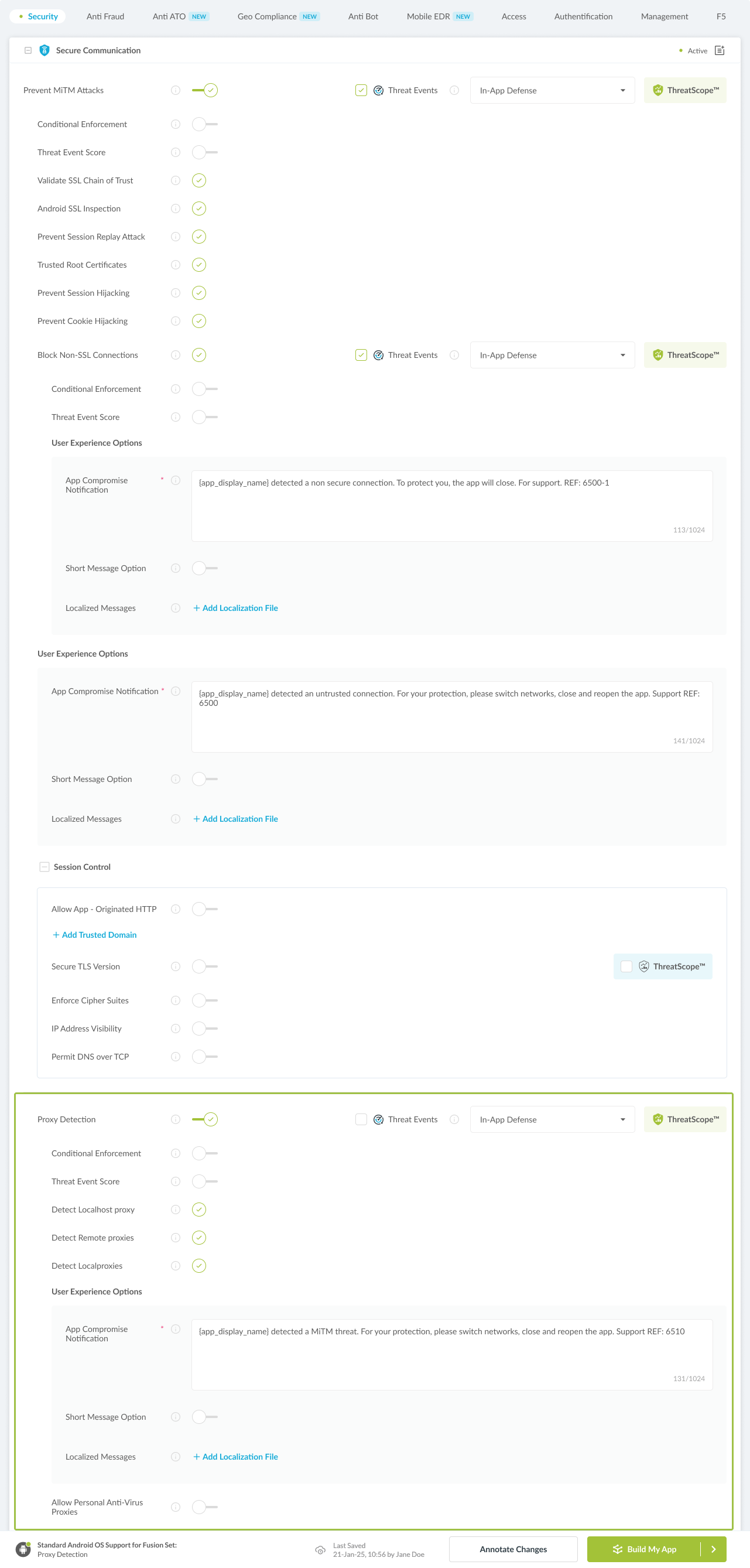
- Double-check the IP and port number entered.
- Ensure your device is connected to the internet.
- Restart your device after making changes.
- Consult your proxy provider’s support for specific errors.
Best Practices for Using Mobile Proxies
- Regularly rotate your IP addresses to avoid detection.
- Use multiple proxies for different tasks to optimize performance.
- Stay informed about your provider’s limitations and policies.
- Monitor your traffic for anomalies or inconsistency.
Conclusion
Adding mobile proxies is a straightforward process that significantly enhances your online privacy and access to content. By following the steps outlined in this guide, you can effortlessly integrate mobile proxies into your browsing experience. Remember to always choose reputable providers and adhere to ethical guidelines when using proxies.
For further details and specific configurations, visit How to Add Mobile Proxies in Dolphin Anty — Quick Guide https://crazyfb.shop/en/page/kak-dobavit-mobilnye-proksi-v-dolphin-anty-bystryy-gayd.